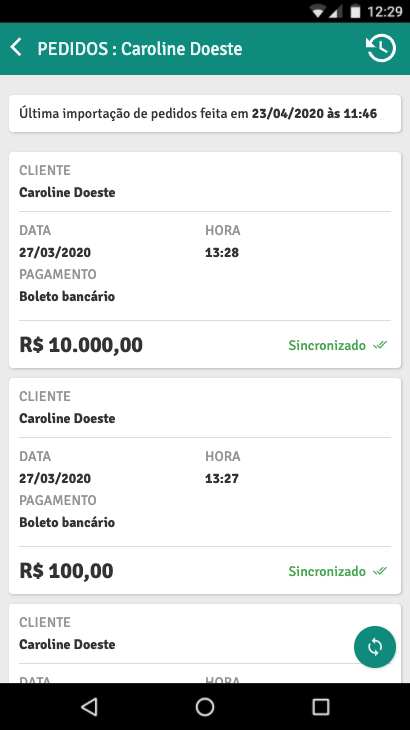
How to Retrieve Order History in PlugSales?
General history
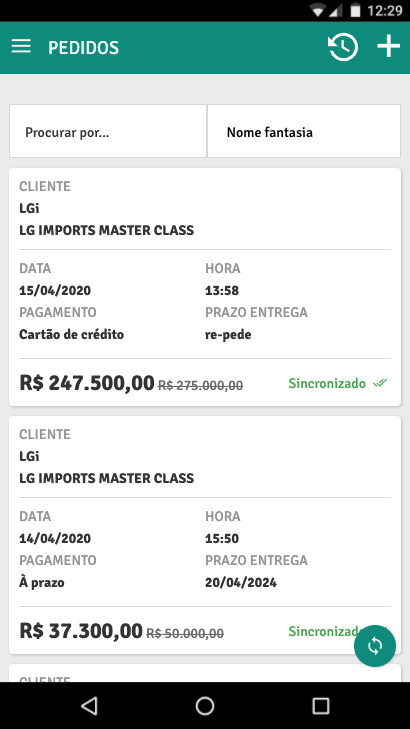
Section titled “General history”The first way to check the history of orders that were placed through PlugSales is as follows:
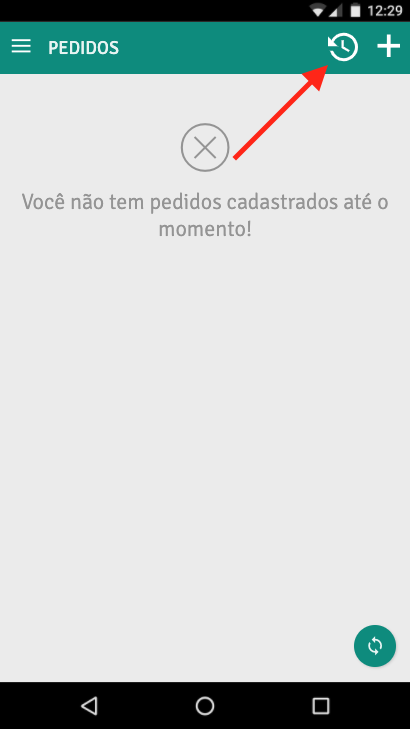
- On the Orders screen, tap the download history button, which is located in the upper right part of the screen with the “clock” icon
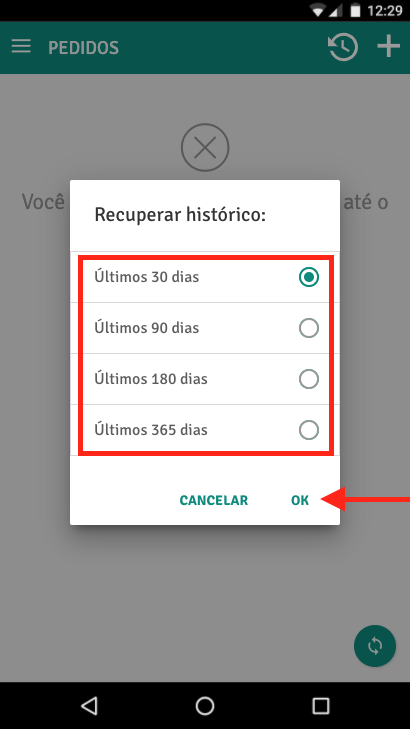
- To avoid unnecessary downloads, you need to select which period of order history you want to download to your device, and then click OK.
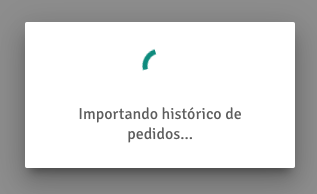
- After confirming, PlugSales will download the history of orders made during that period and display them on your device’s screen.
- Please note that the orders that will be shown are those associated with the seller who made the sales. In other words, seller “A” cannot see sales from seller “B”.
- This filter is due to the FROM-TO you did when mapping user data.
- After the import is complete, you will now be able to see the orders made in the selected period.
History per customer
Section titled “History per customer”The second way to consult the history of orders that were placed through PlugSales is as follows:
- Enter the Customers screen.
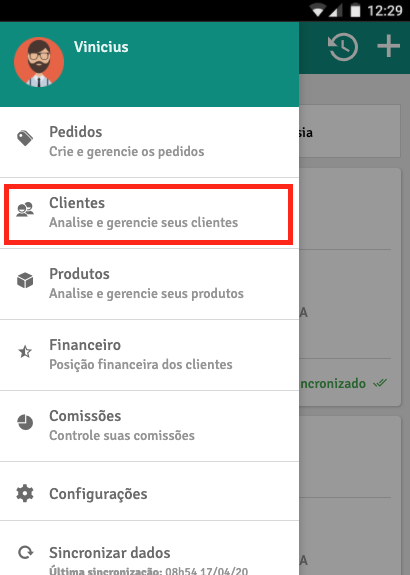
- Click on the Order History button located at the bottom of each customer’s data listed.
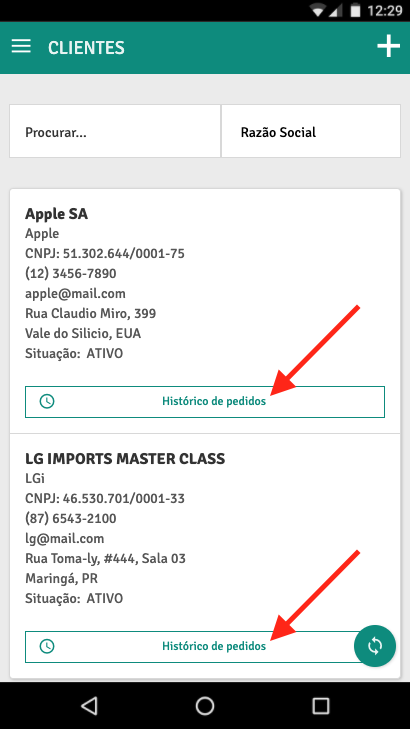
- If you don’t have any orders from this customer, PlugSales will ask you to download the history.
- After this, the orders screen will be displayed containing orders from the customer selected in the previous step.