

3.1. Identifying errors when importing data > PlugSales
If a customer registration or order made in the application has not yet reached your system or database, it is important to check at which stage of the flow the information stopped. This guide presents the registration path and how to identify and resolve possible errors.
In this article you will see:
Registration made in the application did not reach the system: what to check?
Section titled “Registration made in the application did not reach the system: what to check?”1. Has the registration already been sent to the API?
Section titled “1. Has the registration already been sent to the API?”2. The registration has already been sent to the API, but has not reached the bank
Section titled “2. The registration has already been sent to the API, but has not reached the bank”5. Check if the registration is already at the bank
Section titled “5. Check if the registration is already at the bank”Registration made in the application did not reach the system: what should I check?
When a customer registration or order is made in the application and does not appear in your system or database, it is necessary to identify at which stage of the process the information stopped.
First of all, understand how the shipping flow works.
Application flow
Once a registration is made on the device:
- The registration is sent to our API and stored in our database.
- The company’s PlugBot constantly checks the API.
- When identifying a new registration, PlugBot imports it.
- It then runs the configured processes and inserts the data into your database.
If the registration did not reach your system, there was probably a failure in one of these steps.
- Has the registration already been sent to the API?
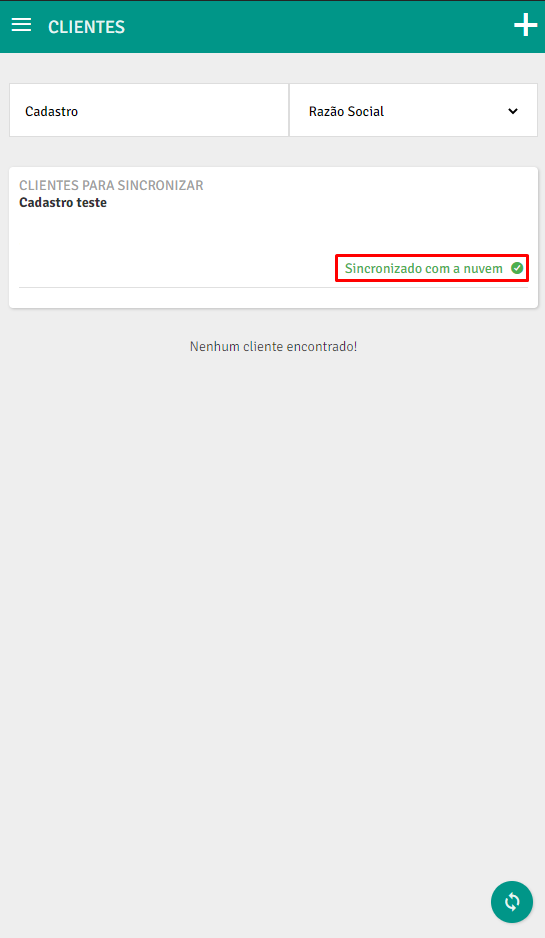
First, check the application to see if the registration has a Synchronized status.
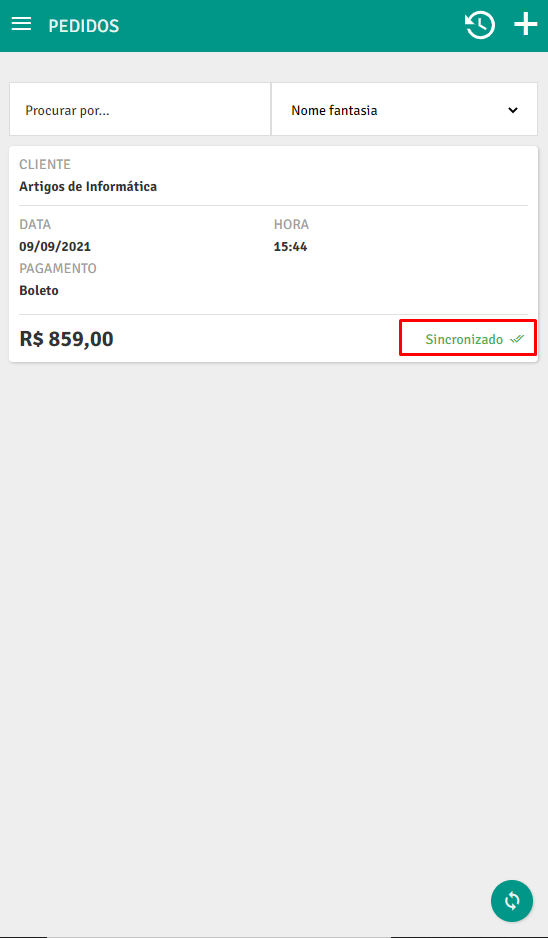
If not synced:
- Check if the device has internet access.
- Confirm that the connection is stable.
- Wait for the connection to normalize for automatic sending.
If the status is:
- “Synced with the cloud”
- “Waiting for client sync”
See the documentation this documentation > Click Here
If it still doesn’t resolve the problem, continue with the next checks.
Pay attention to the use of mobile data
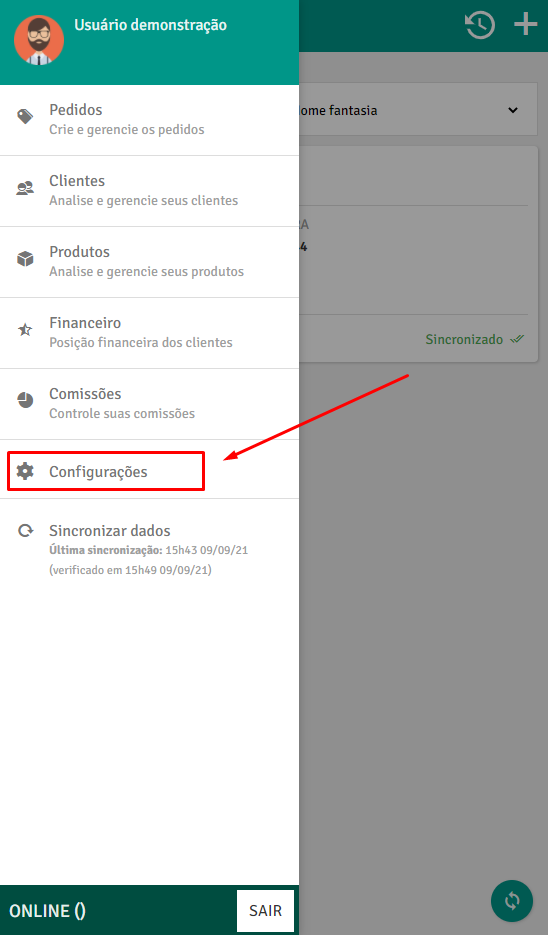
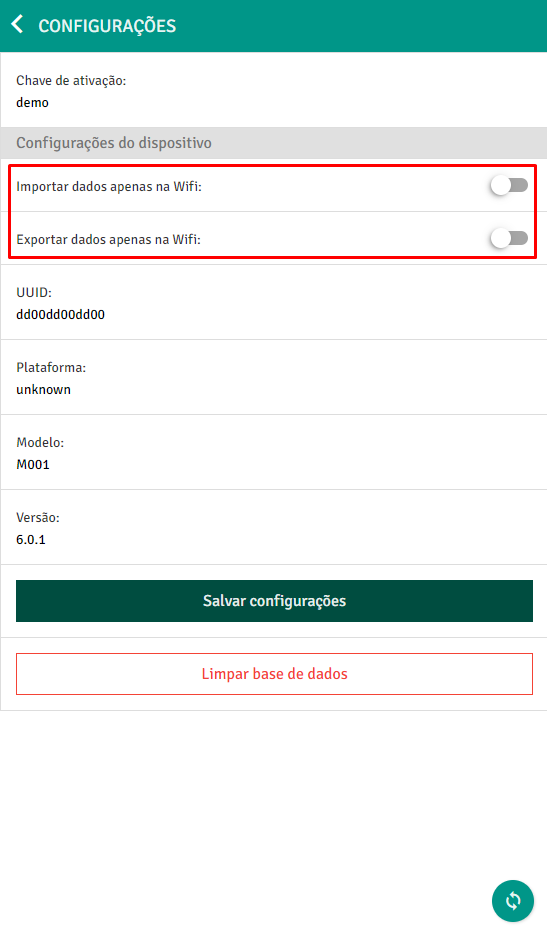
Section titled “Pay attention to the use of mobile data”If your device is on 3G/4G, confirm that the option to sync over Wi-Fi only is turned off in the app settings.
If the registration still remains as “Not synchronized” or “Awaiting synchronization”, contact support.
- The registration has already been sent to the API, but has not reached the bank
If the registration already appears as synchronized, it means that it is in our database, but has not yet reached your database.
In this case, validation must be done in PlugBot, responsible for insertion into the database.
- Check if PlugBot is working
Access PlugBot
Section titled “Access PlugBot”Open the browser and access: localhost:8088 (or the configured port)
Note: Not compatible with Internet Explorer.
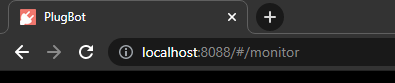
If you cannot access:
- Check if the PlugBot service is active in the Windows tray.
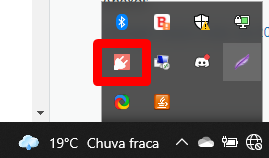
- Right click and restart the service.
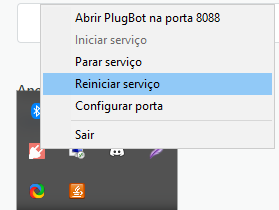
- Wait a few moments and try again.
If you still cannot access, contact support.
- Check if PlugBot is online

When accessing the dashboard:
- Confirm that PlugBot is Online.
- If you are offline, click Connect PlugBot.
- Wait a few minutes for complete synchronization.
If the registration does not appear on the monitor after a few minutes, continue checking.
- Check last sync
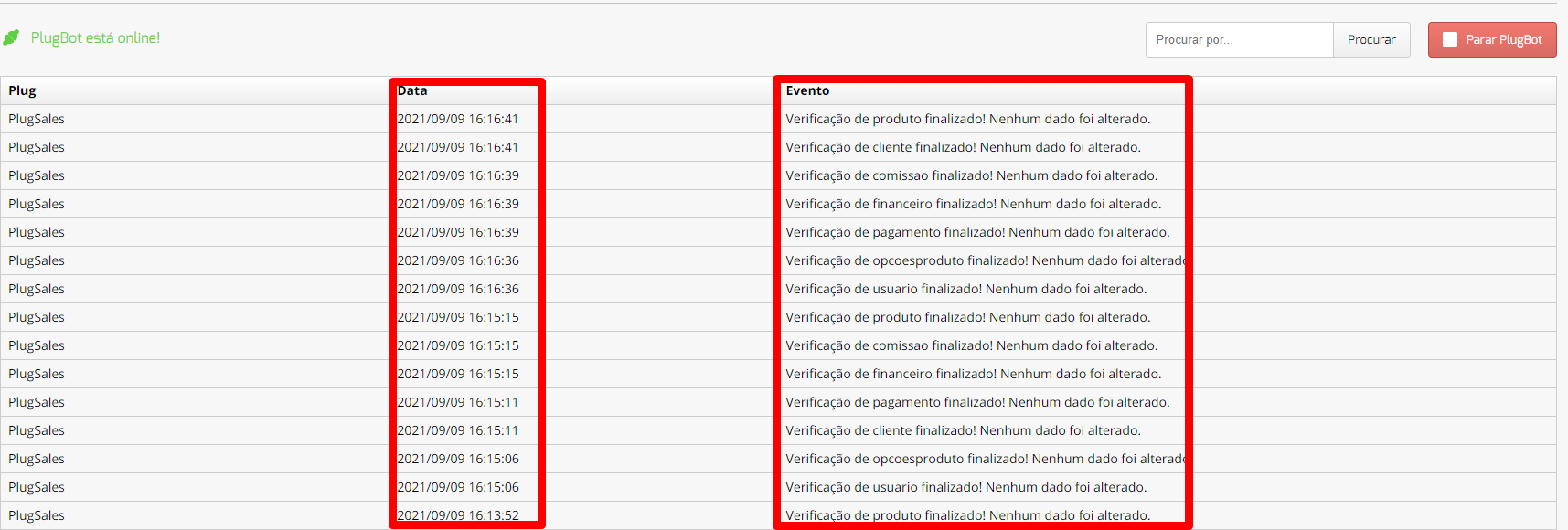
See when the last sync occurred.
If it’s been a long time:
- Restart the PlugBot service.
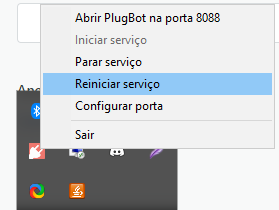
- Wait a few seconds.
- Refresh the browser page.
If no new syncs appear after restarting, contact support.
- Check the PlugBot monitor for errors
Review the sync monitor.
Found SQL error?
Section titled “Found SQL error?”If there is an SQL error on import, please refer to the specific SQL error fix documentation.
No error found?If there is no error and there is no registration import record:
Section titled “No error found?If there is no error and there is no registration import record:”- Check that the insertion query is correct.
- Confirm that you are pointing to the correct table.
Example: Is the customer insertion query configured correctly?
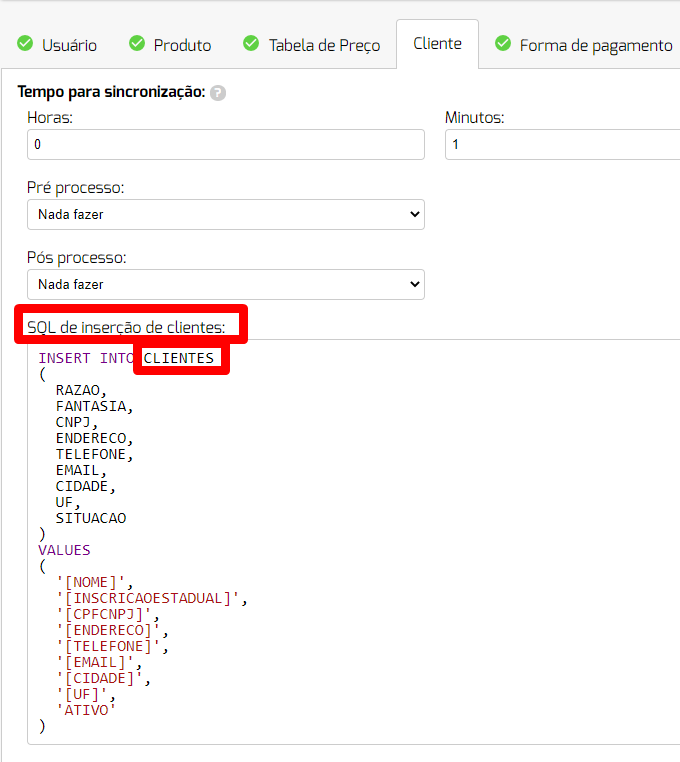
If it is incorrect, make the adjustment and ask support to resend the registration.
- Check if the registration is already in the bank
If the query is correct, the registration may have already been entered.
Make a SELECT directly on the bank:
- For customers: search by name, CPF or CNPJ.
- For orders: search by order number.
- If you cannot find the record after searching, contact support for analysis.