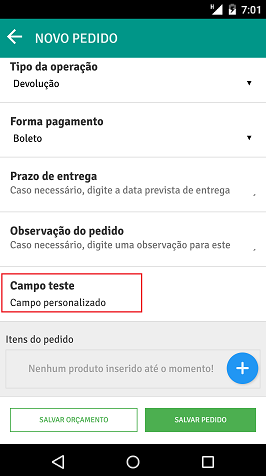
How to add custom fields to the order? (PlugSales)
Okay, now when placing an order it will be possible to add information in the added field. In PlugSales: I want to provide more data when placing an order, what should I do?
In this article we will teach you how you can add fields to the PlugSales order.
To activate a new field, go to the orders tab, and after entering the order field, enable the “add custom field” option:
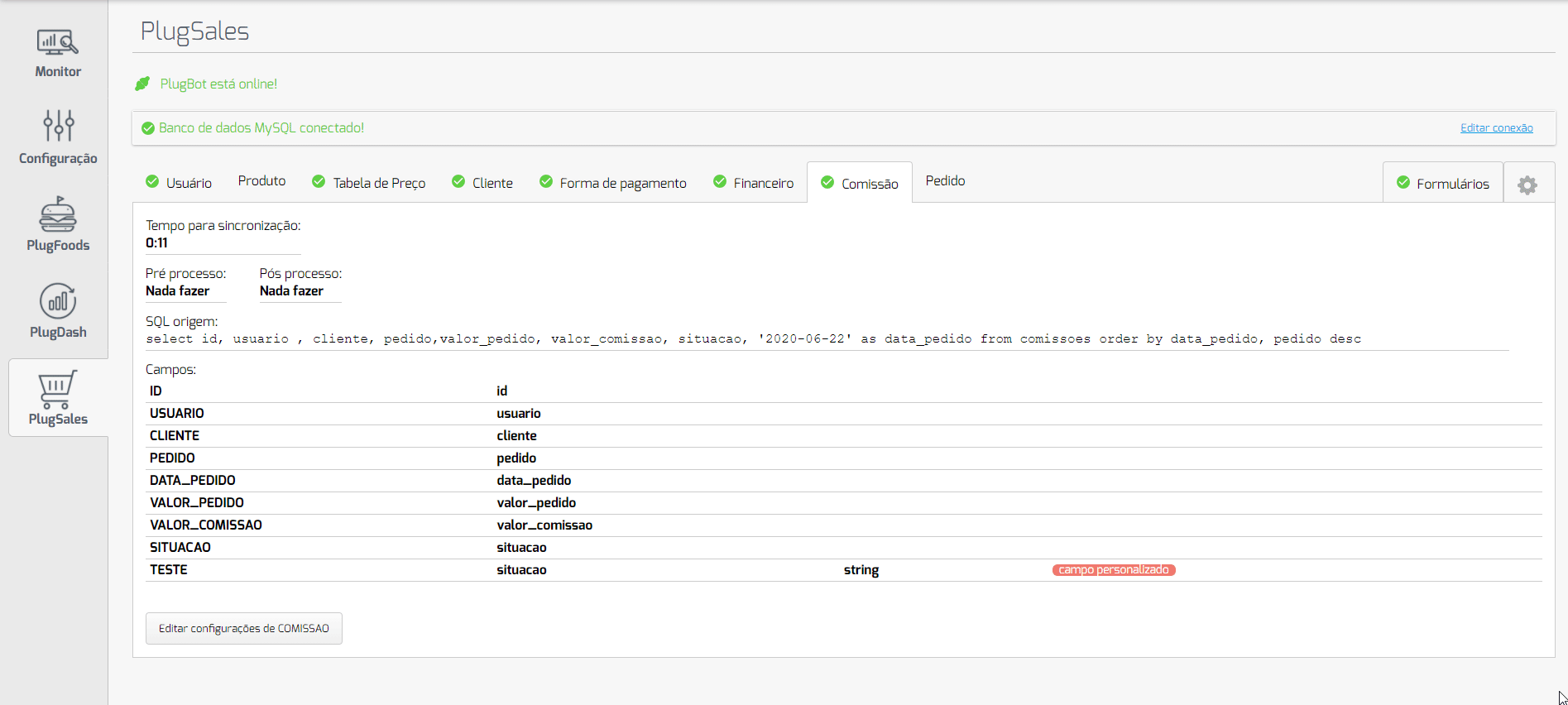
In this field you can add your preferred name, enable the type of data it will receive and define whether or not it will be displayed in the order sharing PDF:

Learn more: How to share order PDF?
Type: “Date”:
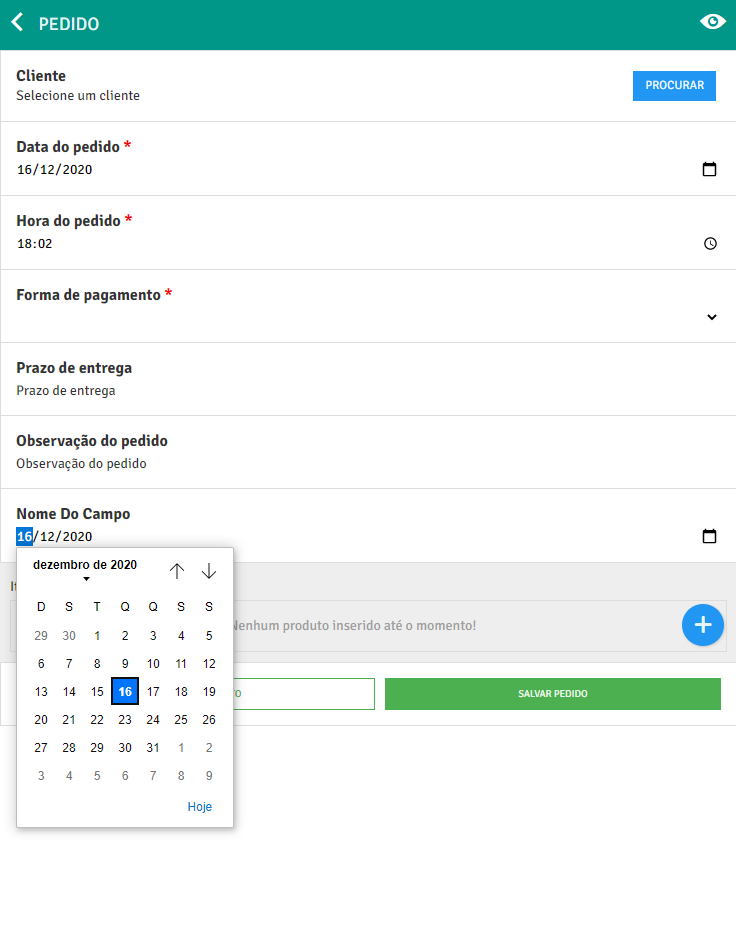
Section titled “Type: “Date”:”This field will be displayed in calendar format in the application, allowing the user to select a valid date.
Type: “String”:
Section titled “Type: “String”:”This field will be free to type in the application. It will allow the seller/user to fill in any information in the field, whether letters or numbers.
Type: “Number”:
Section titled “Type: “Number”:”This field will allow the seller/user to fill in numeric data only. The field will not accept letters or characters (with the exception of commas and periods).
Type: “Options”
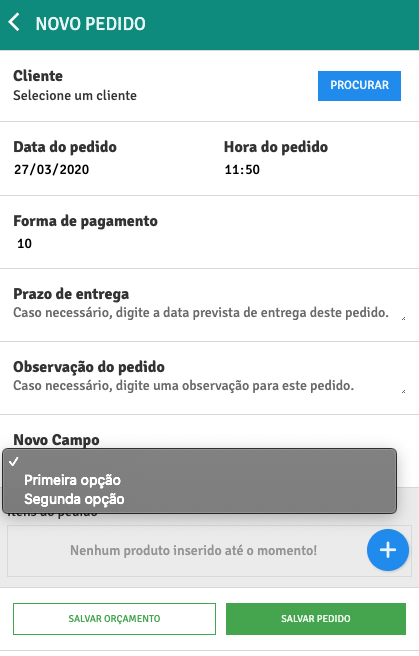
Section titled “Type: “Options””If you want to create a custom selection field in PlugSales, you can select the Options type and then configure the collection of data that will be shown as selectable options in the application.
The data must be records that,obrigatoriamente, have two properties:
- value: this property will be used in PlugBot to replace the insert parameter of a request.
- text: this property will be used in PlugSales to show the user which option they can select.
In PlugBot:
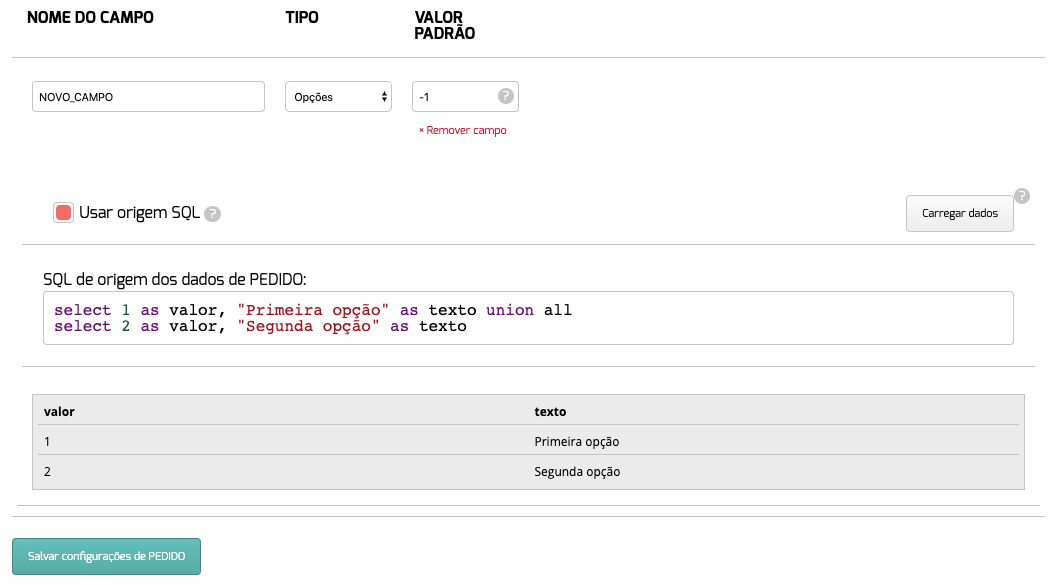
On PlugSales:
Once this configuration is done, it will be necessary to add the field parameter to the insert of the order:

Okay, now when placing an order it will be possible to add information in the added field.