1.7.Integrating with your data > Integrating PlugSales with Oracle
This guide explains how to prepare the environment and configure PlugSales integration with Oracle database through PlugBot.
In this article you will see:
Host field configuration / connectionString
Section titled “Host field configuration / connectionString”Pre-integration: supplementary files
For PlugBot to be able to correctly connect to the Oracle database, it is necessary to download a complementary file external to PlugBot.
Download the file from the link below: Download Oracle Files
After downloading the .zip file:
- Extract the contents to the PlugBot installation folder (normally: C:\Program Files\PlugBot\8088).

- Check if the PlugBot folder is organized correctly after extraction.
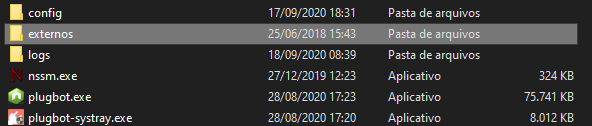
- Access the folder: external > Oracle.
- Run the vcredist_x64 installer.

If the repair option appears, click “Repair” and wait for it to complete.
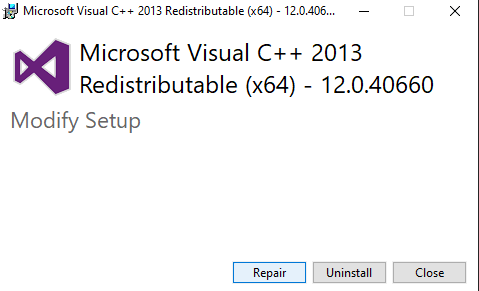
Ready! The initial settings are now complete.
Integration with Oracle database
After finishing the pre-installation step:
- Access the PlugBot control panel.
- Click on the PlugSales tab.
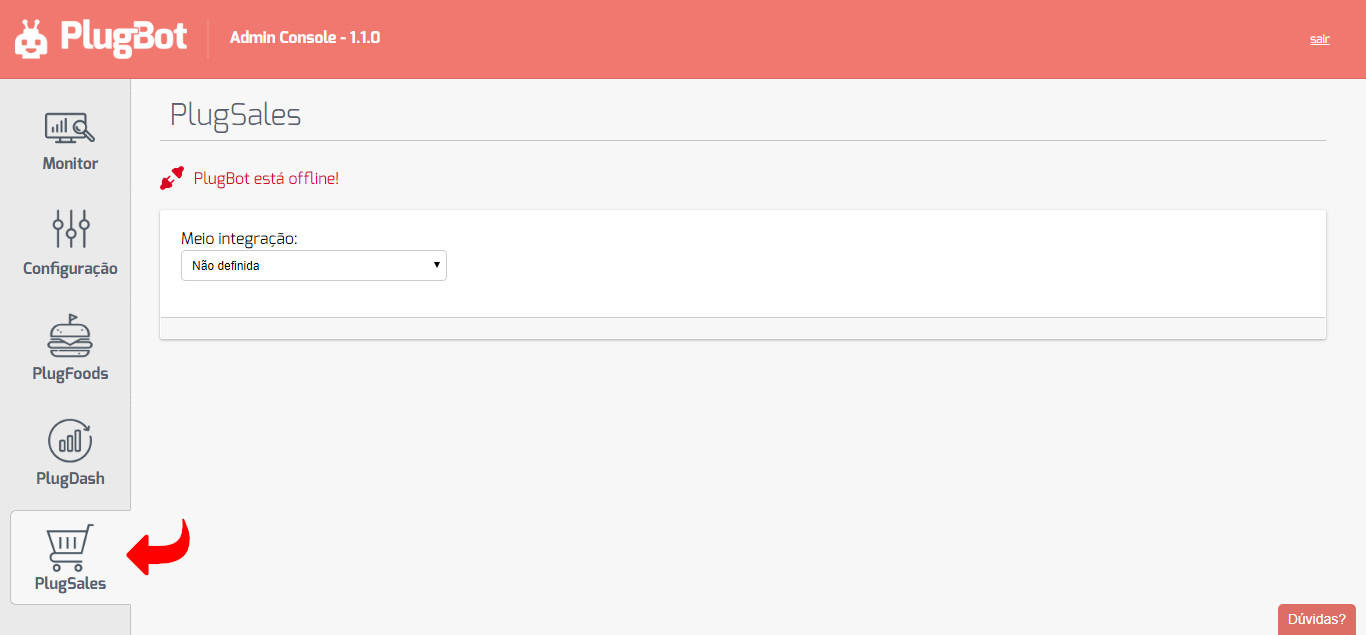
- Click on “Half integration”.
- Select the “Oracle Database” option.
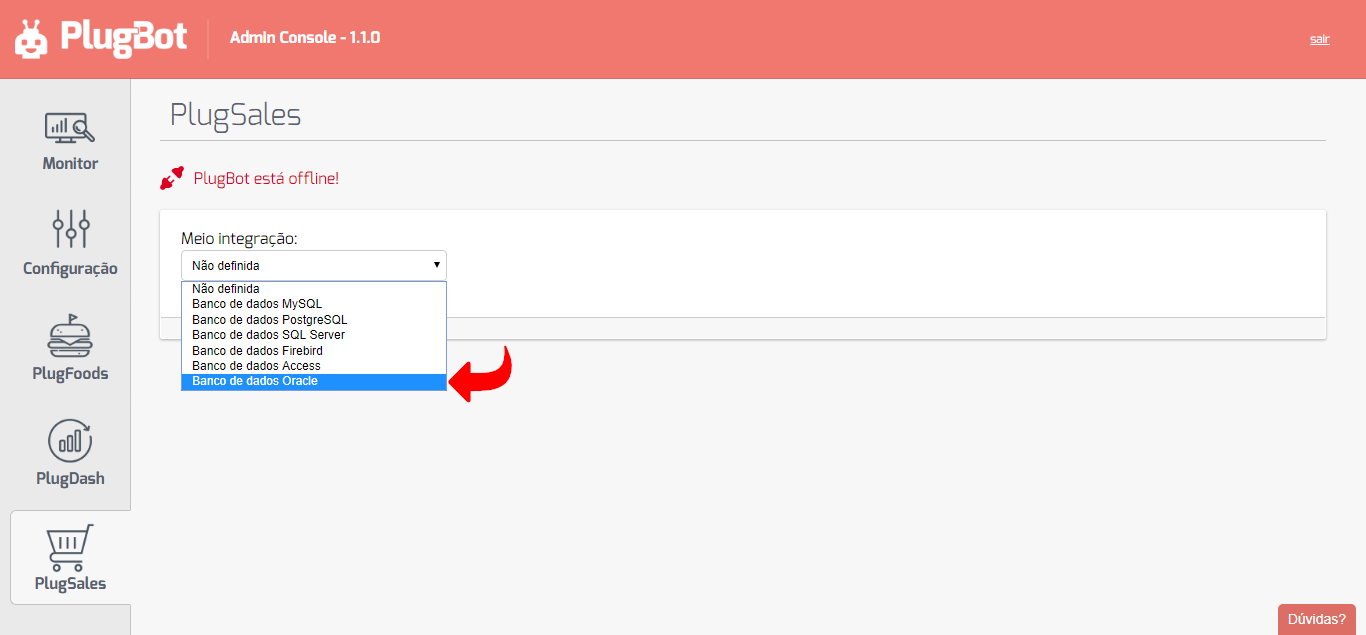
After selecting the integration method, fill out the form displayed with your Oracle bank information.
Host field configuration / connectionString
In the Host/connectionString field, you can fill in two ways:
Option 1: IP + ServiceName
Section titled “Option 1: IP + ServiceName”Example
192.168.25.200/XE
Option 2: Complete ConnectionString
Section titled “Option 2: Complete ConnectionString”Example:
(DESCRIPTION = (ADDRESS_LIST = (ADDRESS = (PROTOCOL = TCP)(HOST = plugmobile.dns.com.br)(PORT = 8759)) (ADDRESS = (PROTOCOL = TCP)(HOST = 192.168.25.200)(PORT = 1521)) ) (SOURCE_ROUTE = yes) (CONNECT_DATA = (SERVICE_NAME = hello) ) )
Finalizing the connection
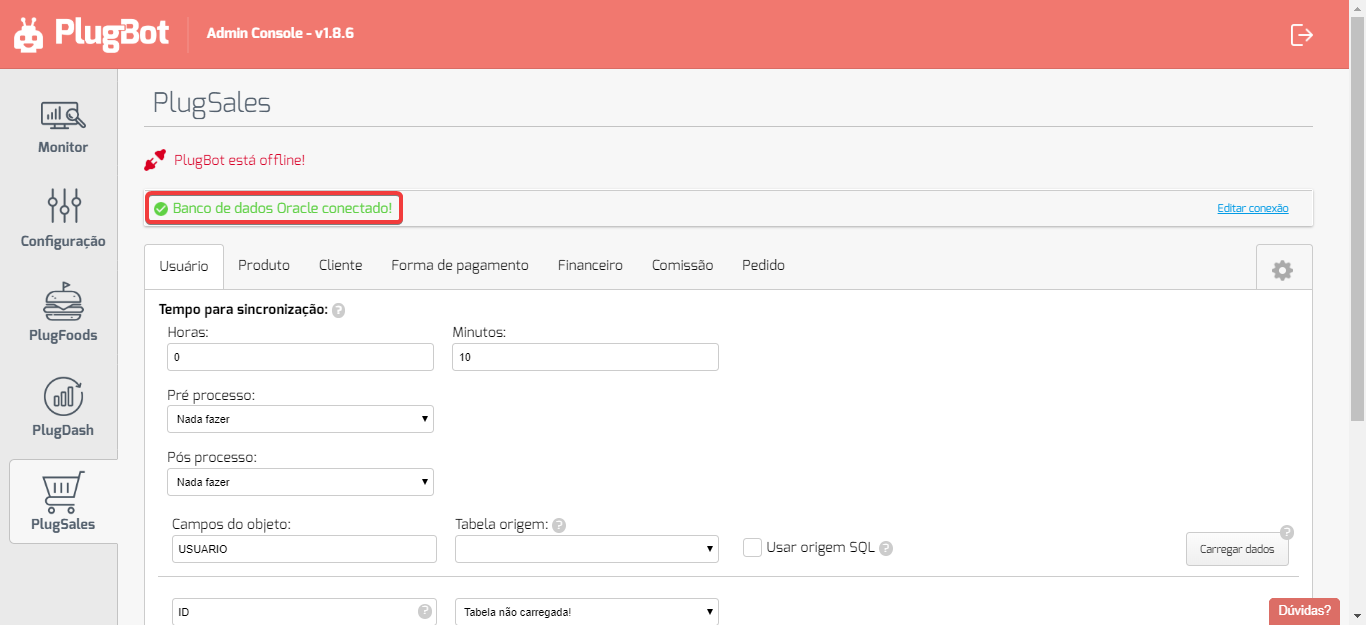
With all the information filled in correctly, click on “Connect Oracle Database”.
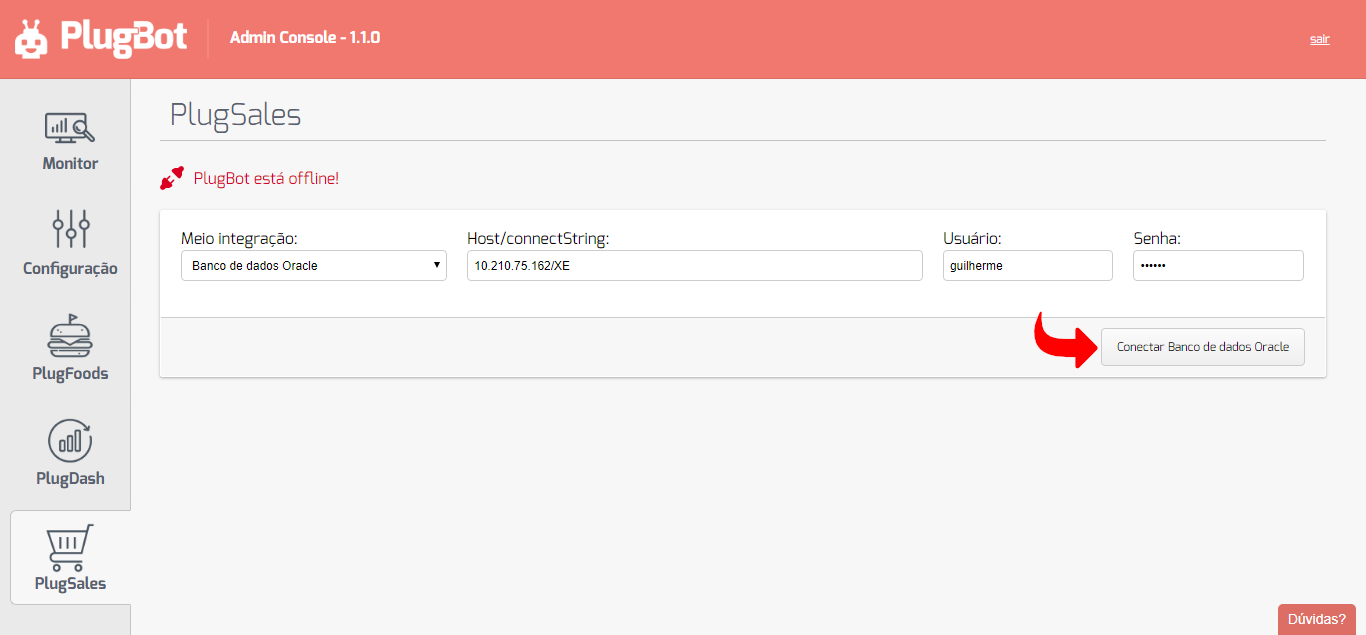
Ready! The integration will be configured and PlugSales will be able to synchronize the data normally.