

1.6. Integrating with your data > Integrating PlugSales with text files
This guide explains how to configure PlugSales integration via text files (CSV or JSON), allowing PlugBot to read the data and sync correctly with the application.
In this article you will see:
- How to select integration using CSV or JSON files
- How to end the connection
- Where to find examples of standard files
Integration via text files (CSV or JSON)
To start the integration with text files, access the PlugBot control panel and click on the PlugSales tab.
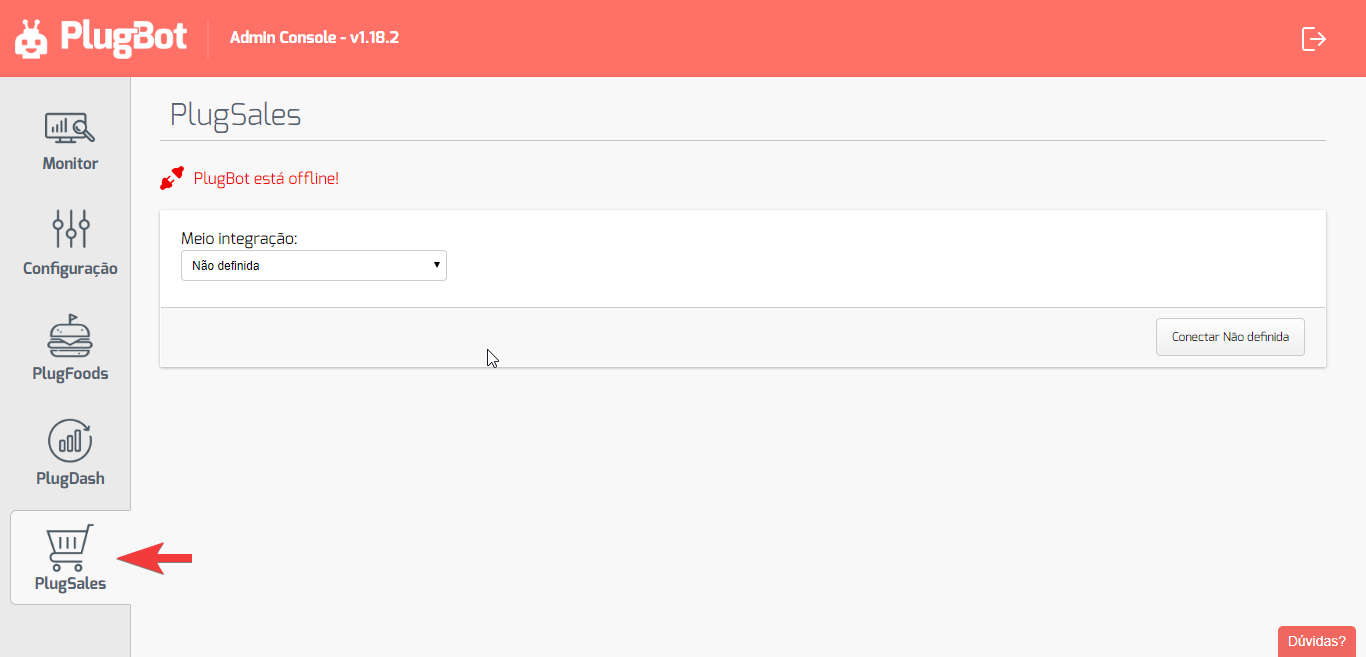
On the displayed page:
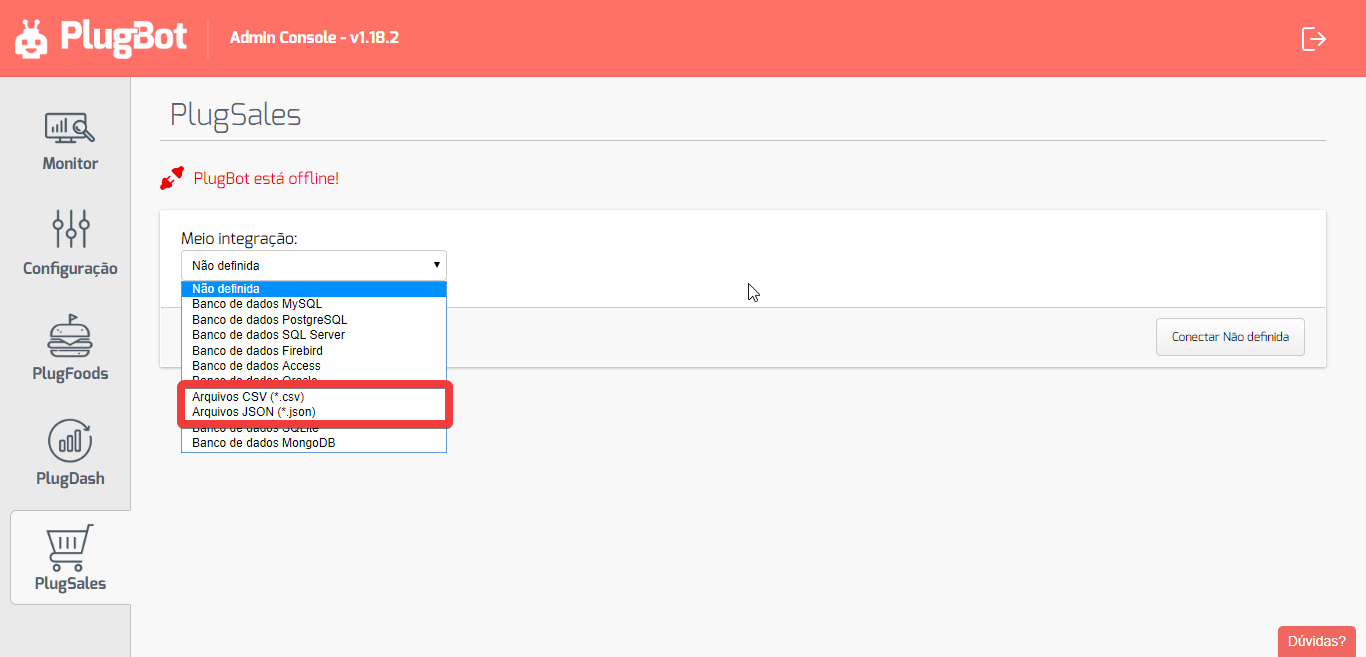
- Click on “Half integration”.
- Select the option “CSV Files (*.csv)” or “JSON Files (*.json)”, depending on the format used.
After selecting the integration method, fill in the form displayed with the directory where the CSV/JSON files are stored.
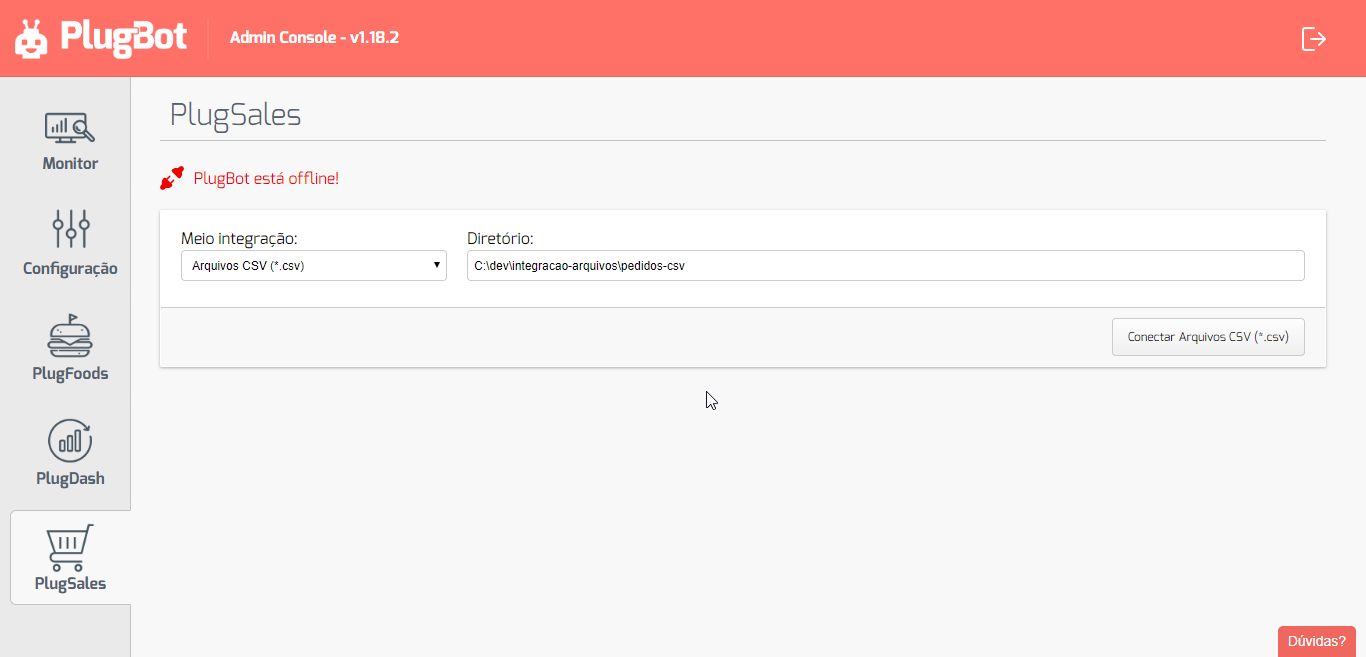
Finalizing the connection
With the form filled out correctly, click on “Connect CSV Files (*.csv)”.
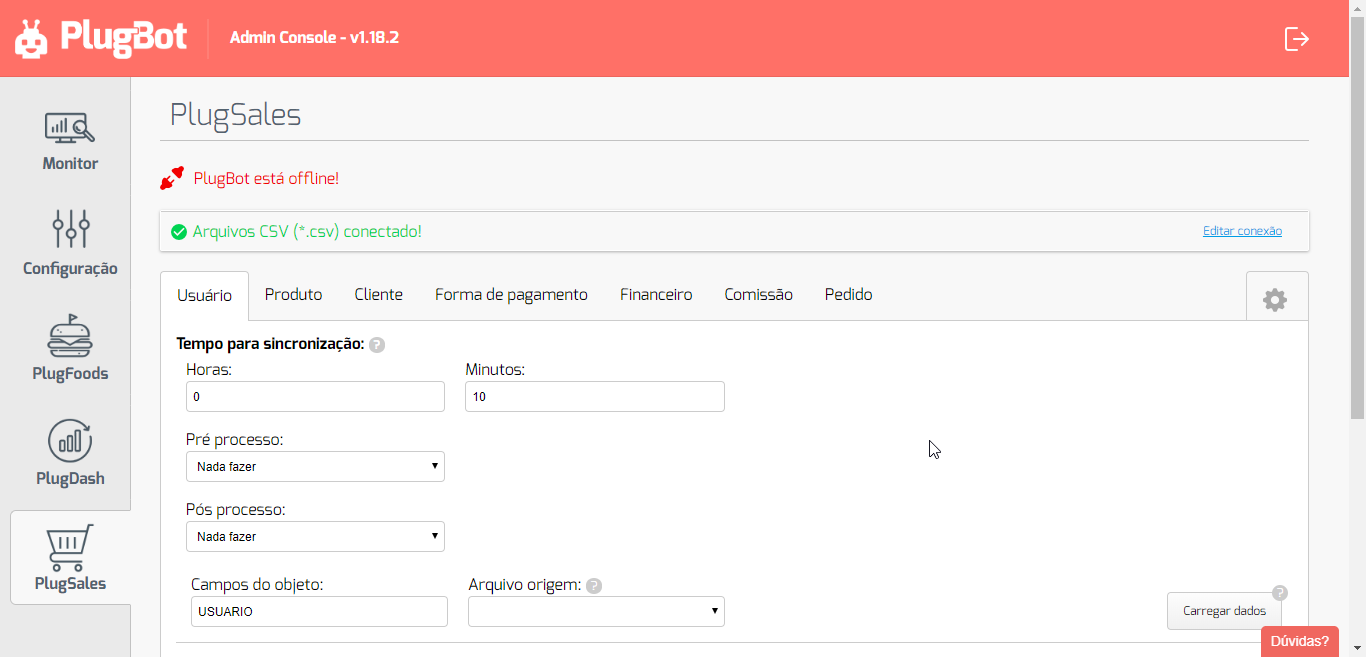
After connection, PlugBot will access the CSV/JSON files and you will be able to start configuring your PlugSales.
Important
CSV or JSON files must follow the layout standard required by the system, so that the data is read correctly and the integration works without errors.
You can download sample files in the expected formats (CSV and JSON) from the link below: