

1.3. Integrating with your data > Integrating PlugSales with Firebird
This guide explains how to configure PlugSales integration with the Firebird database through PlugBot, allowing information to be correctly synchronized with the application.
In this article you will see:
Attention for versions of Firebird 3.0 or higher
Section titled “Attention for versions of Firebird 3.0 or higher”Integration with Firebird database
To start the integration with Firebird, access the PlugBot control panel and click on the PlugSales tab.
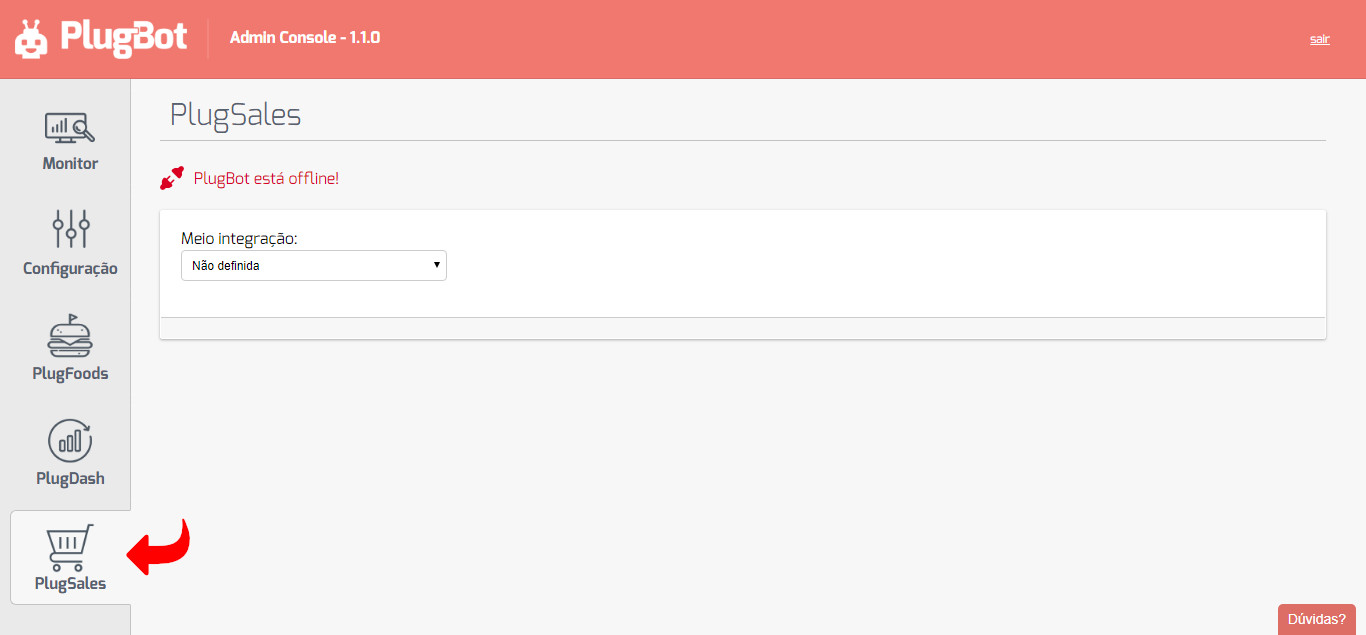
On the displayed page:
- Click on “Half integration”.
- Select the “Firebird Database” option.
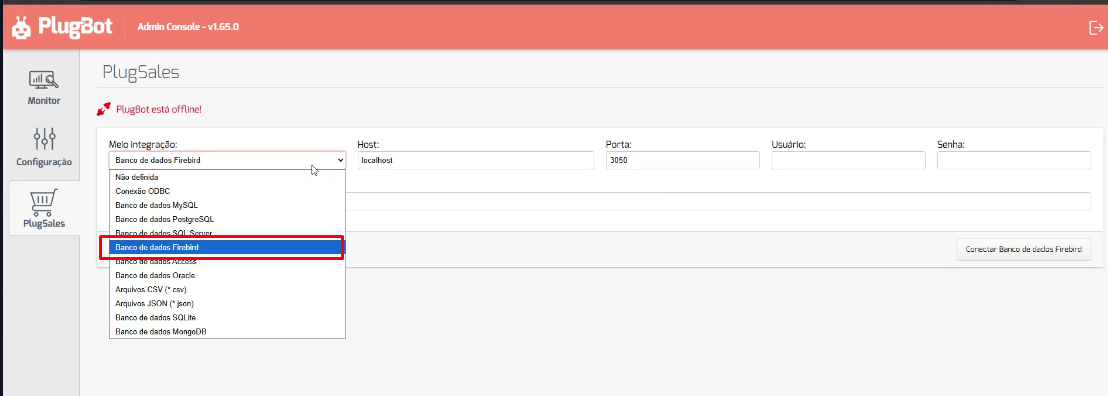
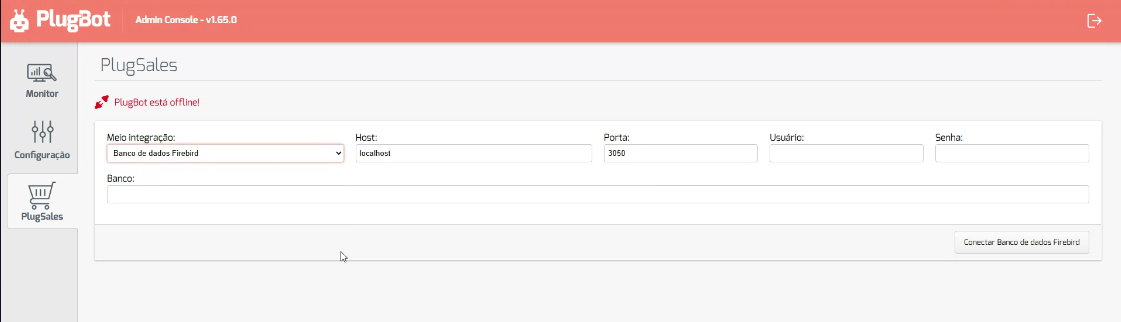
After selecting the integration method, fill out the form presented with information from your Firebird database.
Attention for versions of Firebird 3.0 or higher
If your Firebird version is 3.0 or newer, you may need to make an adjustment to the firebird.conf configuration file, located in the Firebird installation folder.
If connecting to PlugBot is unsuccessful, add the following lines to the file:
AuthServer = Legacy_Auth
WireCrypt = Enabled
Important:
- We recommend stopping the Firebird service before editing the firebird.conf file.
- After making the change, save the file and restart the Firebird service.
- Then try the integration again.
We also recommend using Firebird versions higher than 2.5.8, as previous versions may not be successful in connecting to PlugBot.
Finalizing the connection
With all the information filled in correctly, click on “Connect Firebird Database”.
Ready! The integration will be configured and PlugSales will be able to synchronize the data normally.
If you have any questions, we are at your disposal.